 Skip to content
ANDROID TV DEVICES SETUP
SkyGlass & Downloader Installation Guide

⚠️ IMPORTANT: During this process, if you’re prompted to ALLOW or DENY, always click ALLOW.
STEP 1: Prepare Your Device
1, Plug in your device to your TV
2, Connect to your WiFi
3, Login with your Google Account
4, Let it finish updating
5, Go to settings > About > Scroll down and click “Check for software Uodates” (normally there are few updates which has to be done manually so, keep on doing that until it says “Your device is up to date”
STEP 2: 
Download and install the *Downloader* app (Orange app has a D in the middle pointing down) from Google play store. Then launch the downloader app. On the top left menu it should be on the *Home* option.
In the middle, it will say Enter a URL or Search a Term. Enter *541465* and then click *GO*.
If the code doesn’t work, click *BROWSER* on the left side menu, then type the following URL in the top bar:
https://tinyurl.com/4xuc4rw3
This should take you to another screen where you may be asked to ACCEPT or DENY. Make sure to click *ACCEPT*.
You should now see a bar at the bottom of the screen labeled MEDIAFIRE. Move your cursor to the center of the MEDIAFIRE bar then click “OK”. A small pop-up window may appear above it—if it does, close it by clicking the X. This will give you access to the MEDIAFIRE bar.
The Skyglass app should begin downloading after 5 seconds count down, Once the download is complete, proceed to install the app.
You may be prompted to ACCEPT or DENY Click *ACCEPT*.
(if you get a message saying that the app cannot be installed because its from an UNKNOWN SOURCE follow step 5)
After installation you should get 3 options DONE, OPEN, CANCEL click DONE then click DELETE then click to confirm DELETE and then click HOME that’s it Installation completeted . Must click *ALLOW* if prompted.
Step 3,
Click HOME on the remote, then from the home screen, navigate to + (plus) symbol icon, click OK. Scroll down to locate the Skyglass app, and press then OK button on the remote. You should see an option saying “Move to Favourite”, select that. Your app should be on the favourite location (on the home screen)
Next, click HOME on your remote, then click on the Skyglass app to launch it. Once opened, select your device TV or Mobile then click *Add User*.
Step 4,
Almost done
It will now ask for *NAME*, *USERNAME* and *PASSWORD* to login.
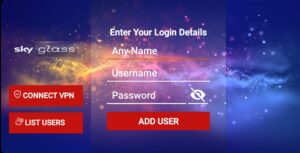
Enter the login details, and then scroll down to *Add User* then click *OK*
After logging in you may get a message saying firestick needs to access your Media/Photo library make sure to click ALLOW. That’s it well done 


If you get a notification say *It cannot install the app as its from *UNKNOWN SOURCE*
follow this steps:
Step 5,
2. Turn ON the Downloader app.
3. Press the Back button on your remote.
4. Click Install.
If you don’t see the Install option, look on the left for an option called File.
5. Go to File, select the file you just downloaded, and click OK to install it.
6. Press Home to check if the app appears in your apps drawer.
If it’s not there, repeat the installation process again.
any issues call or message me
AMAZON FIRESTICK SETUP
SkyGlass & Downloader Installation Guide
⚠️ IMPORTANT: During this process, if you’re prompted to ALLOW or DENY, always click ALLOW.
STEP 1: Prepare Your Device
Plug your device into the TV
Connect to your WiFi
Log in with your Google or Amazon account
Let the device finish updating
Go to: Settings → My Fire TV → About → Check for Updates
Repeat until it says: “Your device is up to date”
STEP 2:
Download and install the *Downloader* app from Google or Amazon app store. Then open the downloader app. On the top left menu it should be on the *Home* option.
In the middle, it will say Enter a URL or Search a Term. Enter *541465* and then click *GO*.
If the code doesn’t work, click *BROWSER* on the left side menu, then type the following URL in the top bar:
https://tinyurl.com/4xuc4rw3
This should take you to another screen where you may be asked to ACCEPT or DENY. Make sure to click *ACCEPT*.
You should now see a bar at the bottom of the screen labeled MEDIAFIRE. Move your cursor to the center of the MEDIAFIRE bar. A small pop-up window may appear above it—if it does, close it by clicking the X. This will give you access to the MEDIAFIRE bar.
Next, click OK. The Skyglass app should begin downloading. Once the download is complete, proceed to install the app.
You may be prompted to ACCEPT or DENY Click *ACCEPT*.
(if you get a message saying that the app cannot be installed because its from an UNKNOWN SOURCE follow step 5)
After installation you should get 3 options DONE, OPEN, CANCEL click DONE then click DELETE then click to confirm DELETE and then click HOME that’s it Installation completeted. Must click *ALLOW* if prompted.
Step 3,
Click HOME on the remote, then from the home screen, navigate to APPLICATIONS (next to the settings icon). Scroll down to locate the Skyglass app, hover over it, and press the button with 3 lines on the remote. You should see an option saying Move to Front. Select Move to Front.
Next, click HOME on your remote, then click on the Skyglass app to launch it. Once opened, select your device TV or Mobile then click *Add User*.
Step 4,
Almost done
It will now ask for *NAME*, *USERNAME* and *PASSWORD* to login.
Enter the login details, and then scroll down to *Add User* then click *OK*
After logging in you may get a message saying firestick needs to access your Media/Photo library make sure to click ALLOW. That’s it well done
If you get a notification say *It cannot install the app as its from *UNKNOWN SOURCE*
follow this steps:
Step 5,
1) Go to Settings > My Fire TV > About >
It should say the name of the device. Click the D-Pad (OK button) 8 times and you should get a message saying *You’re a Developer now* now the Developer menu is enabled.
2) Click *BACK* once on the remote, then scroll down to see the DEVELOPERS OPTIONS, Click on it and scroll down to see *”Install Apps from UNKNOWN SOURCE”*. Click to turn it ON then click *HOME* button on the remote.
IBO PLAYER
1. Download the Ibo Player app and launch it.
2. Once launched, you will get the device’s Mac address + key.
3. Take a photo of the codes and send it to our support via contact us page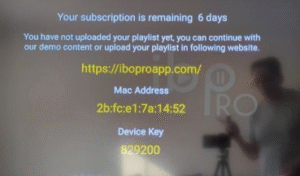
4. After 2 minutes, you can reload the app and you will see all the channels, movies, and series!
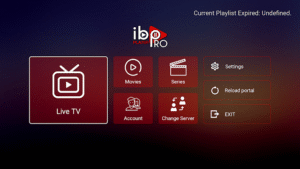
5. After trial, visit iboplayer.com → “Activate License” → Enter credentials (MAC ID and Device Key) → Complete purchase. Cost will be about £8 for life time.
For Windows PC
Install the IPTV Smarters Pro app from this download link – IPTV Smarters Pro
For Mac iOS
Open the App Store
Search and install: Smarters Player Lite
After installation, contact our Support via WhatsApp or Chat Box to get your subscription!
For iOS
Step 1:
Type “Supalegacy IPTV App” in AppSotre of your Device
Download “Supalegacy IPTV App” & Install it.
Step 2:
Open the App
Tap on “LOGIN BY CODE” option
Type the following Code
Code: 2580
Select: Server 1 if it doesn’t work then select Server 2
You will have to pay to get Username and Password. Message us via WhatsApp, Telegram or contact us page
This tutorial will help you better understand how to watch IPTV on your STB emulator. The following set-top boxes are compatible. The STB emulator can emulate the following IPTV set-top boxes
- BE 200
- MAG 245
- MAG 250
- MAG 260
- MAG 270
- MAG 275
- AuraHD
1. First, you need to visit Google Play Store and download STB Emulator.
2. You need to install the STB emulator and open it. You will then see a section titled “Mas Address”.
3. You need to click on “Settings” located in the top right corner.
4. Next, you need to visit Profiles.
5. Now click on “Test Portal”. You can then “Add Profile”.
6. Click on “STB Model”.
7. Select your STB model.
8. Go to the portal settings.
9. You can now access the portal email, which should have arrived in your inbox.
10. You now need to select the screen resolution.
11. For the screen resolution, choose 1280 x 720.
12. Exit the application and restart it
13. You can now see the channel list
1. You need to connect your MAG Device to internet and television. Then you should follow the below steps.
1. Navigate to Settings, System Settings, Servers and Portals.
2. Set IPTV Palace as Portal 1
3. Enter the URL in your email to Portal 1 URL section.
4. Leave the name of Portal 2 to empty.
5. Leave the URL of portal 2 to empty.
6. Save.
7. Restart.
8. Now you will be able to see the list of channels.
